UTM Parameters in GA4: Setup Guide
The most common question about UTM parameters and GA4 is really a misconception wearing a setup question's clothes: "how do I set up GA4 to track UTM parameters?" There's no setup step that turns this on — GA4 reads standard utm_* query parameters automatically, on every session, the moment its tag is installed on a page. What actually needs doing is verification: confirming your tags are landing in the dimensions you expect, not enabling a feature that's already on by default. This assumes the five UTM parameters themselves are already familiar — this guide is specifically about where they end up once GA4 reads them, not what each one means.
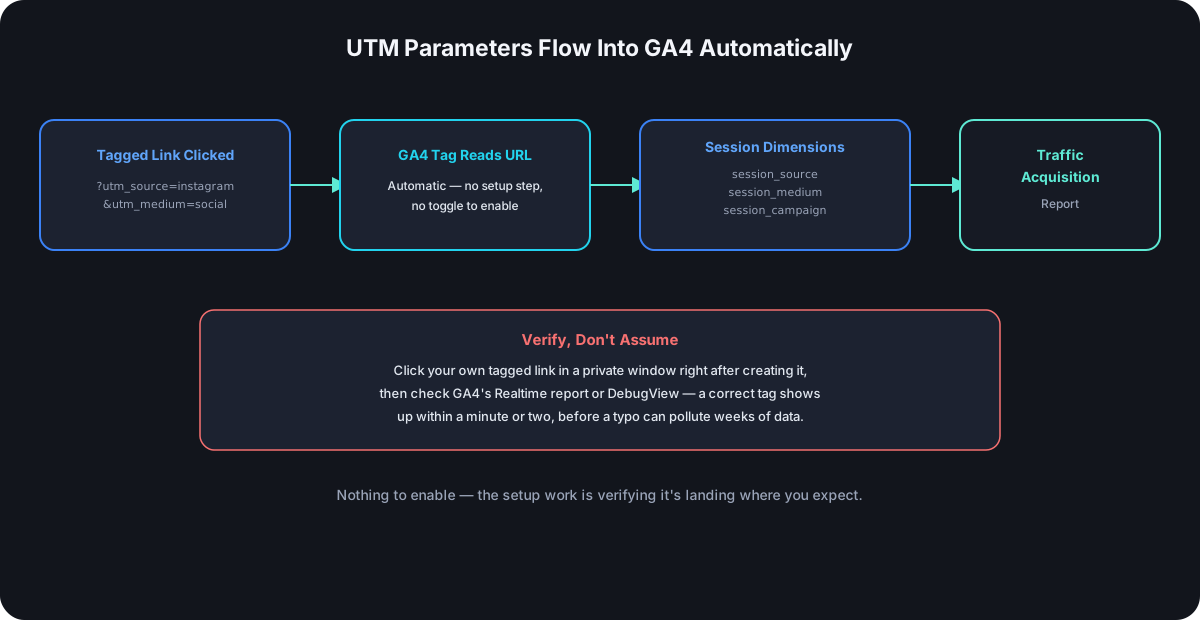
There's No "Enable UTM Tracking" Setting
GA4's tag, wherever it's installed, reads the current page's URL on every page load as part of its normal collection behavior — utm_source, utm_medium, utm_campaign, utm_term, and utm_content get parsed out of the query string automatically, with no dashboard toggle, no extra snippet, and no plugin required beyond the base tag already being present. If UTM data isn't showing up, the tag itself isn't installed correctly, or the parameters never reached the page — not a missing configuration step.
Where UTM Data Actually Lands
The five utm_* parameters map into a corresponding set of session-scoped dimensions — session_source, session_medium, session_campaign, session_term, and session_content — which is what the standard Traffic Acquisition report groups by. GA4 also derives a higher-level rollup called the default channel group (things like "Organic Social," "Email," "Paid Search") partly from medium, which is exactly why a closed, consistent list of medium values matters beyond just tidiness — an unexpected medium value can land a session in the wrong channel grouping entirely, not just an inconsistently-labeled one.
The Google Ads Auto-Tagging Collision
This is the gotcha that catches people who assume "more tagging is always better": Google Ads auto-tags its own outbound links with a gclid parameter, and GA4 gives that auto-tagging priority for attributing Google Ads traffic — a manually added utm_source=google&utm_medium=cpc on an actual Google Ads click is usually redundant at best and a source of conflicting attribution at worst. The practical rule: let Google Ads auto-tagging handle Google Ads traffic, and reserve manual UTM tagging for everywhere auto-tagging doesn't apply — email, social, other paid platforms, anywhere you're the one constructing the link. Ad platform tagging behavior does shift over time, so verify current precedence rules in Google's own documentation before assuming this is unchanged.
How to Actually Verify a Tag Is Working
Don't wait for an aggregate report three weeks from now to find out a tag was malformed. Click your own tagged link in a private/incognito window immediately after creating it, then check GA4's Realtime report or DebugView — a correctly tagged session shows up within a minute or two with the exact source, medium, and campaign values you set. This single habit catches the most common failure mode — a typo or a missing parameter — before it's had weeks to quietly pollute a real report.
Setup Mistakes Specific to GA4
Casing and naming drift show up as split rows, exactly as they do in any analytics tool — GA4 doesn't normalize Instagram and instagram into one value, which is the same problem a written naming convention exists to prevent.
A redirect that strips query parameters loses the tag before GA4 ever sees it. Whether a redirect preserves UTM parameters through to the final destination depends on how it's implemented — worth testing directly rather than assuming every hop in a redirect chain passes the query string through untouched.
Testing in a browser with an existing session can mask a fresh tag's actual attribution, since GA4's session-scoped attribution can carry forward from an earlier visit in the same session window — a private window forces a genuinely fresh session for testing.
First-User vs. Session Attribution: Which Report to Trust
GA4 keeps two separate flavors of attribution, and mixing them up is a common source of "why don't these two reports agree" confusion. Session-scoped dimensions (session_source, session_medium, session_campaign) update every time a new session starts, so a returning visitor who first arrived via a tagged campaign last month but came back directly today shows today's session as direct. First-user dimensions (first_user_source, first_user_medium, first_user_campaign) instead lock in whatever source brought that user in the very first time, and never change again for that user. Neither is "more correct" — a session-scoped report answers "what drove traffic this week," while a first-user report answers "what originally acquired this user," and picking the wrong one for the question you're actually asking is a common, avoidable source of misread data.
Frequently Asked Questions
Do I need to install anything extra for GA4 to read UTM parameters? No — the base GA4 tag reads them automatically as part of standard collection. Nothing beyond correct tag installation is required.
Why did my campaign traffic show up as "Direct" instead of my tagged source? Usually a stripped or malformed UTM string — a redirect that dropped the query parameters, a typo in a parameter name (utm_source misspelled as urm_source silently gets ignored), or the link being opened from an app or email client that strips tracking parameters before the click reaches your page.
Should I add UTM parameters to my own internal site links? No — UTM parameters are for tracking traffic arriving from outside your site. Adding them to internal navigation links can incorrectly reset session attribution mid-visit, overwriting the actual original source with your own site as the "source."
How long does UTM data take to show up in standard (non-Realtime) reports? Standard GA4 reports typically reflect data with a processing delay of a few hours, not instantly — Realtime and DebugView exist specifically to verify tagging without waiting for that delay.
Where Cut.bd Fits
Cut.bd's UTM builder generates the same standard utm_* query parameters GA4 (or any analytics tool) already knows how to read — there's no special integration step because none is needed; the parameters get appended at redirect time the same way whether the destination has GA4, another analytics platform, or several installed at once. What does matter for accurate GA4 attribution is the redirect type in front of the tagged link — a cached 301 can let a browser skip the redirect on repeat clicks entirely, which means GA4 never sees that visit as a fresh session at all, tagged correctly or not.
Found this useful? Share it.
Try Cut.bd's link shortener — free, no account required.
Shorten a link